The main change is that FinancialData now returns a TimeSeries object.
 I haven't touched Mathematica 10,11 and 12, learning 13 on Wolfram Cloud
right now. Mathematica has changed a lot!!
I haven't touched Mathematica 10,11 and 12, learning 13 on Wolfram Cloud
right now. Mathematica has changed a lot!!


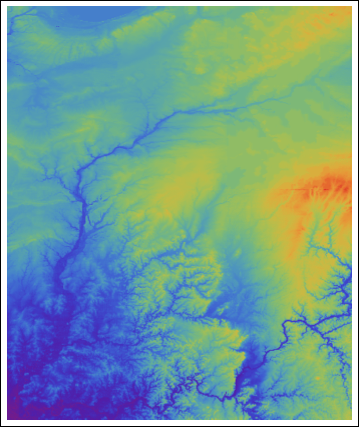
ListDensityPlot[data, PlotRange -> All,
ColorFunction -> (ColorData["Rainbow"][1 - #] &),
RegionFunction -> (inPolyQ2[greenland_ploygon[[1, 1]], #1, #2] &),
MaxPlotPoints -> 150, MeshFunctions -> {#3 &}, Mesh -> 10]

xml = Import["http://oscar.go.com/nominees", "XMLObject"];We are interested in the list of nomineed films
body = Cases[xml, XMLElement["div", {"class" -> "nominee-by-film"}, ___], Infinity];Extract titles:
title = Cases[body, XMLElement["span", {"class" -> "title"}, value_] :> value, Infinity]Extract the number of nominees:
nominee =Put these two together:
Cases[body,
XMLElement["h1", {"class" -> "numberOfNominations"}, value_] :>
StringCases[value, x : NumberString :> ToExpression[x]], Infinity] ;
result = Sort[Transpose[{title, Flatten@nominee}], #1[[2]] > #2[[2]] &]Let's draw a graph to show the top 10 of the most nomineed films:
oscar = Import["http://www.oscars.org/awards/academyawards/about/awards/images/side_oscar.jpg"];
BarChart[result[[1 ;; 10, 2]],
ChartLabels -> Placed[Flatten@result[[1 ;; 10, 1]], After],
BarOrigin -> Left, Background -> LightBlue, ChartElements -> {oscar, {1, 1}},
Axes -> None, LabelStyle -> {Bold, Darker@Blue, 14}]


KML doesn’t have the circle object built in, a circle can be made by line or polygon object. With GeoDestination function, a perfect circle can be created.
Polygon@Table[GeoDestination[GeoPosition[{39.17, -86.52 }], {5000, a}], {a, 0, 360, 10}][[All, 1, {2, 1}]]
This line will generate a 36-sides polygon centered at 39.17, –86.52 with 5000 meters radius. Then export it to kml, you probably has to manually modify the kml file to set up the color styles.
Here is an example, we use the radius to represent the vertical motion, 1 cm motion = 5000 meters on the ground.
Texture support is one major improvement in Mathematica 8.0. Sure, we can have some fun with it. Here is an example. We draw some polygons first.
Then some textures are applied, we get the following image. The main trick is to use alpha channel to get this cut-out texture mapping effect. The original tree image has the alpha channel already, we can use it directly, Texture[ImageData[tree]] will do the trick, if you use Texture[tree], somehow it will not pick up the alpha channel. For the character image, it doesn’t has the alpha channel, we can set a alpha channel by the following command:
SetAlphaChannel[im,
ChanVeseBinarize[ColorNegate@im] // FillingTransform ]
By the way, the character is Tom Nook: "This isn't fat, I've just lined my insides with money."
One reader asks: could one drive Google Earth from a set of controls within a Manipulate? The answer is yes, however, I only know how to do it with Windows platform through Google Earth COM API. In the past, this issue is covered in this post: Control Google Earth from Mathematica.
The example here is very simple, rotate the camera from Manipulate.
Needs["NETLink`"]
InstallNET[];
(* start up goolge earth *)
ge = CreateCOMObject["GoogleEarth.ApplicationGE"];
(* get the camera object *)
cam = ge@GetCamera[0]
(* define a function to rotate the camera *)
runcam[{lat_, lon_}] := Module[{},
cam@FocusPointLongitude = lon;
cam@FocusPointLatitude = lat;
ge@SetCamera[cam, 2]];
Manipulate[
runcam[{lat, lon}]; {lat, lon}, {lat, -50, 50}, {lon, -180, 180}]
In ContourPlot, ContourStyle –> function can be used to color-code contour lines.For example, the number of contours is numC=20, then for each contour, the color is defined by a coloring function:
ContourStyle -> Table[{ColorData["Rainbow", (i - 1)/(numC - 1)]}, {i, numC}]
Of course, it is also necessary to set Contours –> numC.
Here are the examples, the famous peaks function from Matlab is used.
2D ContourPlot example:
Turn 2D plot into the 3D one:
Another 3D example:
This example shows you how to specific PlotMarkers for each point in a data set. The solution is quite simple, just partition the dataset into different series, each set only contains one point exactly: Partition[data, 1]. Then we can assign the different PlotMarkers for each point.
Let’s download some weather data:
data = WeatherData[$GeoLocation, "WindDirection", {{2009, 1, 1}, {2009, 1, 5}}];
data = Select[data, FreeQ[#, {_, Missing["NotAvailable"]}] &];
We like to use arrows to represent wind directions:
markers =
Graphics[{Red, Arrow[{{0, 0}, -0.5 {Sin[#[[2]] Degree], Cos[#[[2]] Degree]}}],
EdgeForm[], FaceForm[], Rectangle[{-1, -1}, {1, 1}]}] & /@ data;
We put a invisible box around arrow to make sure that the markers are aligned by {0, 0}.
newdata = data; newdata[[All, 2]] = 0;
g = DateListPlot[Partition[newdata, 1], PlotRange -> All, PlotMarkers -> markers, Axes -> {True, False}, FrameTicks -> {Automatic, None}]
Let’s test another place: Tokyo, Japan
Summer time:

Winter time:
The pattern of winter “north” wind and the summer “south” wind is very clear, it is much better than just plotting points.
No notebook, all the codes are here already.
First, this post probably falls into the category of “just because you can do it doesn’t mean you should” with Mathematica.
Here is the job: the comic is in cbz/cbr format, and images are too large for the e-reader usually with 800 by 600 resolutions (the actual usable space is even smaller). So you like to do three things with these images: 1.cut white margins, 2. resize, 3. increase contrast if image is not clear enough. It can be done with three Mathematica commands: ImageCrop, ImageResize and ImageAdjust.
One line example:
Export[#,
ImageAdjust[
ImageResize[
ImageCrop[Import["test.cbz", {"ZIP", #}]], {584, 714}],
0.2]] & /@ (Import["test.cbz", "ZIP"])
If it is in cbr format, it has to be unpacked first.
Actually under the certain situation, this may come in handy. There are more and more comics in epub format made for iPad. And epub is basically a zip file contains html/css and images. The following line returns the image file names inside epub.
Select[Import["test.epub","ZIP"], StringMatchQ[#,__~~".jpg", IgnoreCase->True]&]
Then the images can be changed into grayscale if necessary and re-formatted for e-reader. Just dump the images back into epub afterward.
You want to import the “.mat” file:
Import[“Helheim.mat”]
Import::fmterr: Cannot import data as MAT format. >>
Don’t panic. Since the version 7.3 (2006b), Matlab actually saves mat files using the HDF5 format by default. So pretty much every mat file you work with nowadays is in HDF5 format. Let’s try it again.
Import["Helheim.mat", "HDF5"]
{"/Data", "/Depth", "/Distance", "/Latitude", "/Longitude", "/UTC_time"}
data = Import["Helheim.mat", {"HDF5", "Datasets", "/Data"}];
Then we can generate a beautiful plot in Mathematica.
For who may wonder what this image is, it is the radar image shows underground ice-thickness, more information can be found at The Center for Remote Sensing of Ice Sheets (CReSIS)
We just updated our machine from Windows Vista to Windows 7. I re-installed Mathematica 7 and tested with several notebooks. I didn’t notice any difference on performance.
You can re-use the license file from Vista.
C:\Users\user_name\AppData\Roaming\Mathematica\Licensing\mathpass
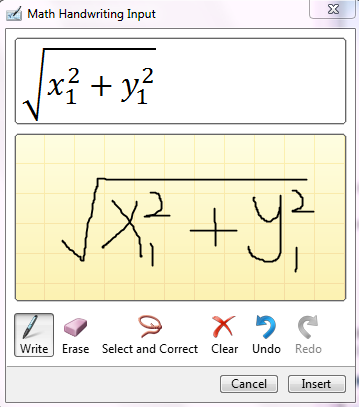
One feature I tested is Handwritten Math Recognition in Windows 7. It works very well with some simple on-screen drawings. If you use a tablet PC, this may be quite convenient in classroom.
One of the new features in Mathematica 7.0 is allowing the sending of email directly from any Mathematica program. It turns out very convenient for the certain situation. We have some computation tasks take long time to finish, so we let it run on the server. The problem is that once a while I have to ssh to the server to check the outputs to make sure nothing wrong with the computation. Now with the email function, I can get the update immediately for each computation step. This is really helpful, especially now days you can check the email almost everywhere.

If you don’t need to check the detail, sending the update through the twitter is probably more cool.
One thing I am not sure is that how to catch the error. If there is an error raised during the computation, the math kernel can automatically send out the email with the error message, this function will be perfect.
By the way, this week I am working on an algorithm related with the Traveling Salesman Problem. If you check TSP on MathWolrd, download the notebook, you will notice it is created by a newer version of Mathematica. Open the file with any text editor, you will see:
(* CreatedBy='Mathematica 8.0' *).
Ok, this seems to be very easy in Mathematica.
Button["Show me a plot", Show[Plot[Sin[x], {x, -Pi, Pi}]]]
Then you click the button, nothing happens.
Button["Show me a plot", Print[Plot[Sin[x], {x, -Pi, Pi}]]]
This line will do the job. Or use the following line:
Show[Plot[Sin[x], {x, -Pi, Pi}],
DisplayFunction -> (Button["Show me a plot", Print[#]] &)]
The key here is to use “Print” rather than “Show”. It isn’t clearly explained in the “ref/Button”.
Here is a simple example on how to customizing Graphplot. We like to use GraphPlot to visualize the number of people who commute into or out Monroe county from/to its neighbor counties.
g={{"Owen" -> "Monroe", 2813}, {"Greene" -> "Monroe",
3788}, {"Lawrence" -> "Monroe", 4022}, {"Jackson" -> "Monroe",
85}, {"Brown" -> "Monroe", 689}, {"Morgan" -> "Monroe",
821}, {"Monroe" -> "Owen", 676}, {"Monroe" -> "Greene",
207}, {"Monroe" -> "Lawrence", 679}, {"Monroe" -> "Brown",
303}, {"Monroe" -> "Morgan", 617}}
vercoor={"Monroe" -> {-86.529, 39.1621}, "Owen" -> {-86.7642, 39.2868}, "Greene" -> {-86.9403, 39.0246}, "Lawrence" –> { -86.4923, 38.8627}, "Jackson" -> {-86.0462, 38.8798}, "Brown" -> {-86.2382, 39.203}, "Morgan" -> {-86.4238, 39.4233}}
First try:
GraphPlot[g, VertexLabeling -> True, VertexCoordinateRules -> vercoor]
Using arrow to indicate in/out seems to be a good idea. We use EdgeRenderingFunction in second try:
GraphPlot[g, VertexLabeling -> True,
EdgeRenderingFunction -> (Arrow[#1, 0.05] &),
VertexCoordinateRules -> vercoor]

However, the labels on the edge is lost. We can handle it in EdgeRenderingFunction.
GraphPlot[g, VertexLabeling -> True,
EdgeRenderingFunction -> ({Text[#3, Mean[#1]], Arrow[#1, 0.05]} &), VertexCoordinateRules -> vercoor]

The graph is still difficult to read, the commuting pattern isn’t clear at a glance. We further update EdgeRenderingFunction and use the line color and thickness to show the pattern.
GraphPlot[g,
EdgeRenderingFunction -> ({If[#2[[1]] == "Monroe", Red, Blue],
AbsoluteThickness[0.5 + #3/500], Arrowheads[0.02 + #3/120000], Arrow[#1, 0.05]} &), VertexLabeling -> True,
VertexCoordinateRules -> vercoor]

In the last try, we use VertexRenderingFunction to make the label more clear.
GraphPlot[g,
EdgeRenderingFunction -> ({If[#2[[1]] == "Monroe", Red, Blue],
AbsoluteThickness[0.5 + #3/500], Arrowheads[0.02 + #3/120000], Arrow[#1, 0.06]} &), VertexLabeling -> True,
VertexCoordinateRules -> vercoor,
VertexRenderingFunction -> ({Text[Style[#2, 14, Bold], #2 /. vercoor, Background -> White]} &)]

Import the shapefile, then you get a map:
This is probably a very trivial problem for the ones who work on both PC and Unix platforms. I download a small DEM (478 rows by 399 columns) stored as Int16 binary from The Gloabal Land 1-km Base Elevation Project. The range of elevation is 99 ~ 397 meters.
Then in an Apple Power Mac G5:
data = BinaryReadList["mydata.bin", Table["Integer16", {399}], 478];
ArrayPlot[data, PlotRange -> {99, 397}]

Obviously, something wrong with the numeric value loaded from the binary file. It turns out the binary is using little endian. However, the Power Mac is using big endian. You can check your system with $ByteOrdering.
Read the data again with the right ByteOrdering option.
data = BinaryReadList["mydata.bin", Table["Integer16", {399}], 478, ByteOrdering->-1];
ArrayPlot[data, ColorFunction->"Rainbow", PlotRange -> {99, 397}]
When deal with large data sets, ReadList is more efficient than Import.
From documentation:
If file is not already open for reading, ReadList opens it, then closes it when it is finished. If the file is already open, ReadList does not close it at the end.
ReadList[stream] reads from an open input stream, as returned by OpenRead.
So we can use OpenRead to open the file, then use ReadList to load large data sets piece by piece.
str = OpenRead[datafile]
(* the first number in our data file is the total number of points *)
ReadList[str, Number, 1]
{17581099}
Then we can read the real data in much smaller pieces every time, otherwise it may not have enough memory to run the processing algorithm.
Here is the example
(* read first 5 records *)
ReadList[str, Number, 7*5, RecordLists -> True] // MatrixForm
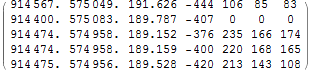
(* read the next 5 records *)
ReadList[str, Number, 7*5, RecordLists -> True] // MatrixForm

At the end, close the file by
Close[str]
From documentation, this is a new feature in Mathematica 7.0:
“For 3D graphics, the operation of Antialiasing can depend on the particular graphics hardware you are using. Antialiasing is disabled unless Allow Antialiasing is set in the Preferences dialog.”

See the difference:
If you use a laptop with the integrated on-board video, antialiasing in 3D may not be supported at all.
MaxPlotPoints is a very useful option when works with large DEM.
dem=Import[tif,{"GeoTIFF","Data"}];
Dimensions[dem]
{2825, 5075}
Try ReliefPlot[dem], it takes a very long processing time in my not-up-to-date computer, on the other hand, with limited monitor resolutions, it doesn’t make sense to draw every point of this DEM.
Let’s first try:
ReliefPlot[dem, MaxPlotPoints –> 25]
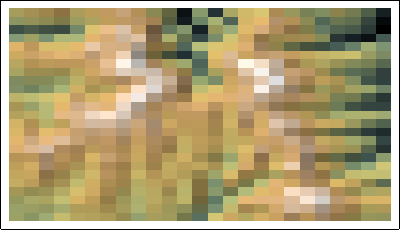
Not quite good, the pixel is in rectangle shape rather than square, then with the small adjustment:
ReliefPlot[dem, MaxPlotPoints -> {50, 25}]

ReliefPlot[dem, MaxPlotPoints -> {1000, 500},
ColorFunction -> "GreenBrownTerrain"]
Click to see the large image, please ignore the left part, it is a quality issue from the DEM data source.

The same rule goes with ListPlot3D, if you want to get a 3D version.
ListPlot3D[dem, MaxPlotPoints -> {600, 300}, Mesh -> None,
Axes -> None, ColorFunction -> "GreenBrownTerrain",
BoxRatios -> {2, 1, 0.2}, ImageSize -> 1200]