Nov 13, 2009

Make a US county thematic map using Mathematica

I read a blog entry How to Make a US County Thematic Map Using Free Tools. The idea is to use Python script to modify the style settings in SVG file to make the most recent unemployment map. Mathematica can’t import SVG file directly, however, SVG file is in XML format, it is very easy to extract the necessary data from SVG file. If you are not sure what’s going here, please refer to the original blog.

All the files are zipped together, just unzip it, run the notebook. Download it here.

usamap

Nov 2, 2009

User-defined color themes

With Blend function, it is quite simple to use user-defined color themes.

Blend[{col1, col2, col3, ...}, x]: linearly interpolates between colors coli as x varies from 0 to 1.

We like to use the following color theme:

c = {{37, 57, 175}, {40, 127, 251}, {50, 190, 255}, {106, 235,
    255}, {138, 236, 174}, {205, 255, 162}, {240, 236, 121}, {255,
    189, 87}, {255, 161, 68}, {255, 186, 133}, {255, 255, 255}};

colors = RGBColor[#/255] & /@ c;

This shows the each color in the theme:

Graphics[Table[{EdgeForm[Black], FaceForm[colors[[i]]],
   Rectangle[{i, 0}, {i + 1, 1}]}, {i, 1, Length[colors]}]]

Colordata

Check the color theme with Blend function:

DensityPlot[x, {x, 0, Length[c]}, {y, 0, 1}, AspectRatio -> Automatic,
  FrameTicks -> None, ColorFunction -> (Blend[colors, #] &),
PlotRangePadding -> None]

Colordata2

Then you probably notice how to use it in your own plot,

ColorFunction -> (Blend[colors, #] &)

Test the color theme with the data:

ReliefPlot[data, ColorFunction -> (Blend[colors, #] &)]

Colordata3

Maybe the ligher color is better.

lightercolors = Lighter[#] & /@ colors;

Colordata5

Just for fun, let’s play the color theme with an existing image.

img=ImageData[ColorConvert[place_any_image_here, ”Grayscale”]];

ArrayPlot[img, ColorFunction -> (Blend[darkercolors, #] &)]

Oct 20, 2009

Wikipedia Page Analysis

Wikipedia has lots of scientific information, however, due to its nature, it is still not considered as a research resource.  This doesn’t mean it has to be ignored. I have checked some pages related with various topics in GIS field. Most of them are well-written, the information are actually quite accurate, several contributors are the professionals in the field. In this post, I like to check some metadata information of  “Mathematica” Page on Wikipedia, it may gives us some ideas about its quality.

Tools we need: Mediawiki API and Mathematica. There are plenty examples on how to use Mediawiki api. Basic procedure is to use Import[queryurl,”XML”], then parse xml to get the information we need.

Page revision history:

(* import  contributor and timestamp *)

url = "http://en.wikipedia.org/w/api.php?action=query&prop=revisions&\
titles=Mathematica&rvprop=user|timestamp&rvlimit=500&redirects$rvuser&\
format=xml";

xml = Import[url, "XML"];
rawdata= Cases[xml, XMLElement["rev", w_, _] :> w, Infinity];
data = {"user", "timestamp"} /. rawdata;


1


2

This page is constantly revised, we probably can assume the information on “Mathematica” page is up-to-date.

The information on the contributors is also interesting.

3 

We can dig out more information on the contributors:

(* import paged edited by each user *)

userpages[usr_] :=
  Module[{url, uxml, udata, unicase},
   url = "http://en.wikipedia.org/w/api.php?action=query&list=\
usercontribs&uclimit=500&format=xml&ucuser=" <> usr;
   uxml = Import[url, "XML"];
   udata = Cases[uxml, XMLElement["item", w_, _] :> w, Infinity];
   unicase = DeleteCases[Union["title" /. udata ],
     x_ /; (StringMatchQ[x, "User talk:" ~~ __] || StringMatchQ[x, "Talk:" ~~ __] || StringMatchQ[x, "User:" ~~ __])]; Map[usr -> # &, unicase]];


4

The common pages edited by these top5 contributors:

 5 

From the pages they have edited, they have worked on several topics closely related with Mathematica. This looks good, we may say they probably know what they are doing.

Update:

Download Wikipedia Notebook for the details.

Oct 15, 2009

Mathematica 7 on Windows 7

We just updated our machine from Windows Vista to Windows 7. I re-installed Mathematica 7 and tested with several notebooks. I didn’t notice any difference on performance.

You can re-use the license file from Vista.

C:\Users\user_name\AppData\Roaming\Mathematica\Licensing\mathpass

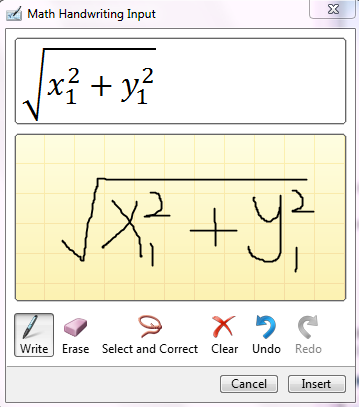
One feature I tested is Handwritten Math Recognition in Windows 7. It works very well with some simple on-screen drawings. If you use a tablet PC, this may be quite convenient in classroom.

handwriting

Sep 23, 2009

Monitor Mathematica computation with email

One of the new features in Mathematica 7.0 is allowing the sending of email directly from  any Mathematica program. It turns out very convenient for the certain situation. We have some computation tasks take long time to finish, so we  let it run on the server. The problem is that once a while I have to ssh to the server to check the outputs to make sure nothing wrong with the computation. Now with the email function, I can get the update immediately for each computation step. This is really helpful, especially now days you can check the email almost everywhere.

Picture 1

If you don’t need to check the detail, sending the update through the twitter is probably more cool.

One thing I am not sure is that how to catch the error. If there is an error raised during the computation, the math kernel can automatically send out the email with the error message, this function will be perfect.

By the way, this week I am working on an algorithm related with the Traveling Salesman Problem. If you check TSP on MathWolrd, download the notebook, you will notice it is created by a newer version of Mathematica. Open the file with any text editor, you will see:

(* CreatedBy='Mathematica 8.0' *).